Buttons Block
In Gutenberg Block Editor, you can add the Buttons Block.
The button can be used both to go to other pages of your site, and to go to third-party sites.
Usually this method is used to highlight some important link. For example, you can insert a “Buy” button, after clicking on which your visitors will be taken to the checkout page.
To add a Buttons Block, you need to click on “+” and in the menu that opens, click on Buttons.
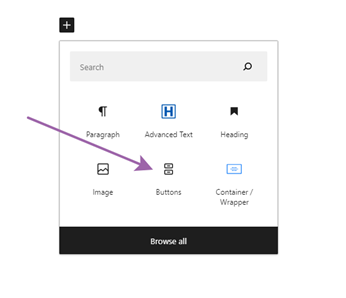
After you click on Buttons, a buttons block will appear.

If you want to add additional buttons, click on the “+” icon or click on “Options” and select “Duplicate”.
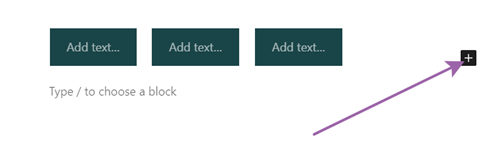
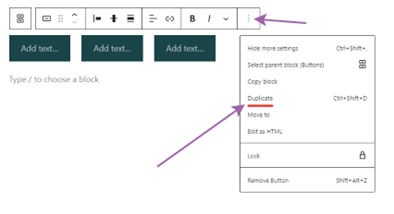
There are two levels for Buttons block:
1.Parent block (responsible for setting up the entire buttons block).
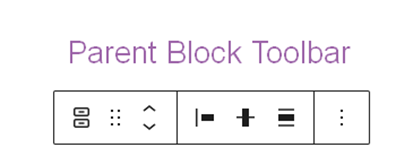
2. The toolbar of a separate button block (You can use it to edit the parameters of a definite button).
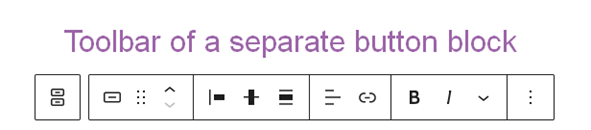
Adding a link
To add a link to the button, click on the link icon on the toolbar.
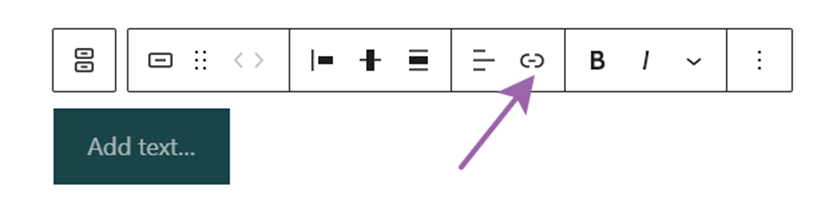
Then enter the desired address in the window that appears and press “Enter” or the arrow on the right. You can also select a link from the list below.
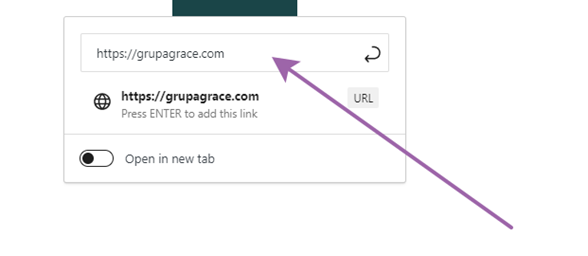
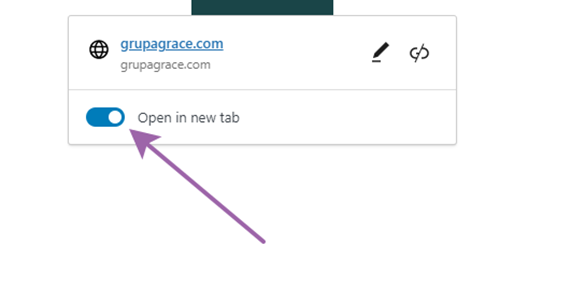
By default, the link opens in the same window. But if you want it to open in a new window, click “Open in new tab”.
Button design
The toolbar has a function for formatting the appearance of buttons.
Go to Setting to open even more settings.
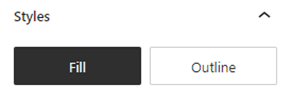
You can choose the button style: filled with solid color (Fill) or framed (Outline).
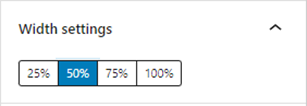
You can change the width of the button by selecting a different one %.
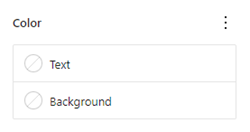
You can also change the color of the text and the fill of the button.
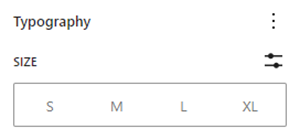
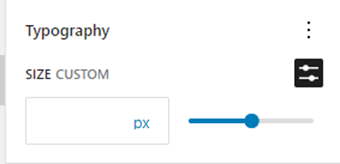
The Typography settings allow you to change the size of the button text.
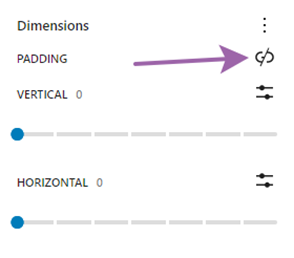
You can choose the indentation or the size of the space between your text and the border of the button.
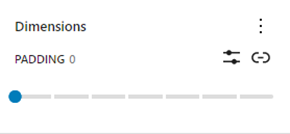
Click on the “Link sides” icon and you will be able to enter different indentation values for the upper and lower or left and right edges of the button.
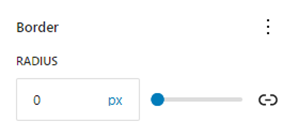
You can make your button look more rounded by entering the radius of the border.
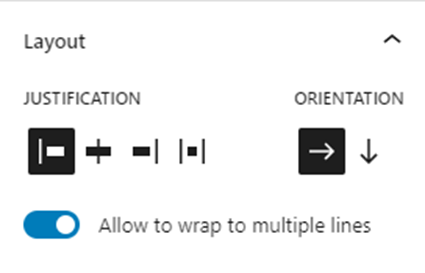
To view additional settings for the entire buttons block, select the parent block and open the “Setting” tab.
There are additional parameters for the alignment of the block, and you can also choose the horizontal or vertical display of the buttons.
You can also choose to have your buttons carried over multiple lines on small devices such as a mobile phone.
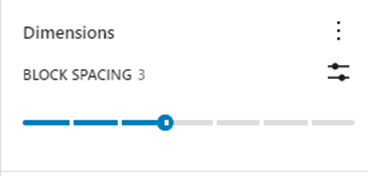
It is also possible to select the distance between the buttons by entering a value in the block spacing column.